


'FAQ' MOBILE BANKING APP 'NAINI NEO'
What is Nainital Bank's NAINI NEO Mobile Banking Application?
Nainital Bank's NAINI NEO Mobile Banking Application that allows you to access your bank account(s) using a mobile phone. You can view account related information and perform balance checks, mini statement, fund transfer, and download statements etc. via a mobile device.
What is the benefit of NAINI NEO Mobile Banking?
NAINI NEO Mobile Banking is more convenient than traditional banking, as customers have the banking world right at their fingertips, no bank timings, no wait times to avail banking services.
Can I avail NAINI NEO Mobile Banking Services?
Yes, NAINI NEO Mobile Banking Services are available to all retail customers of the Bank.
Who is eligible for registration for NAINI NEO Mobile Banking?
Customers of the bank having KYC compliant and eligible SB/CD accounts and valid Branch Token or Debit Card can use the NAINI NEO Mobile Banking App. Customers can avail NAINI NEO Mobile Banking with any of the following modes of operation. 1- Self, 2- Either or Survivor, 3- Sole Proprietor 4- Former Survivor.
What are the basic requirements to avail NAINI NEO Mobile Banking Services?
You need to have an account with the Nainital Bank and a smartphone, active mobile data, and Branch Token or Debit Card.
What are the features offered through NAINI NEO Mobile Banking Services?
You can check your account balances, get mini statements, download statement, fund transfer, bill payments, cheque book services, open e-deposit account, add nominee etc.
Will I be charged for using the app?
At present, there are no charges to customers for using the NAINI NEO App. Your mobile operator may levy charges for GPRS/SMS used. Please check with your operator for details.
Can I use the NAINI NEO app on two devices simultaneously?
No, in order to ensure the security of your account, you can only use the application on one handset.
How can I register for NAINI NEO Mobile Banking Services?
You can register through Debit Card or Branch Token by submitting a request on the required application form at the Bank's Branch.
What type of handset do I need to use the NAINI NEO app?
Both Android and iOS devices are supported. However, for Android devices, the Android version is 10.0+ and for iOS devices, the iOS version is 15.6+.
How to download the NAINI NEO Mobile Banking Application?
NAINI NEO Mobile Banking Application can be downloaded via the respective Play store/App Store. Never download applications from unknown/unverified sources.
If I change my handset, will I be able to access the NAINI NEO App again?
In case you change your handset, you need to download the application again and complete the SIM verification and device binding process again.
I have changed my mobile number. Should I update the bank?
Yes, you must contact the concerned branch for updating your mobile number.
Are there any additional security precautions I should take?
Do not reveal Password/OTP over the phone, mail, etc. to anyone, including the bank. The passwords can be changed as frequently as you wish. Please change your password(s) before they expire or when the system prompts you to do so. Do not click on website links/attachments in unknown/suspicious emails. These links may take you to a replica of the bank's website and ask you to key in your user id and password(s). Bank will never send any email requesting to provide user id, passwords, OTP, and other sensitive information.
What is MPIN?
MPIN (Mobile Personal Identification Number) is a secure pin that is used to validate the user. When the user launches the downloaded application on their mobile, they will be requested to enter the MPIN. The user would be able to login to the application only if he provides the correct MPIN.
What is TPIN?
TPIN is a 6-digit transaction PIN, which will be used while doing any fund transfer. User would be able to do successful transactions into the application only if he/she provides the correct TPIN. This PIN should not be shared with anybody.
Why is the connection to NAINI NEO Mobile Banking sometimes slow?
The internet connection speed of mobile handsets varies depending on different factors, such as network coverage, service provider, location, connection type, and handset model.
1. What is Internet Banking?
Internet Banking is one of the fastest, most convenient way to access your accounts. Using your unique Customer ID and password, you can perform banking transactions online, whenever and wherever you Internet Banking is one of the fastest, most convenient way to access your accounts. Using your unique Customer ID and password, you can perform banking transactions online, whenever and wherever you want, from any PC with Internet access.
2. How do I access Nainital Bank Net Banking?
Logon to Nainital Bank Net Banking using the link https://naininetbanking.nainitalbank.co.in using the username and password.
3. How to get the username and password to login the net banking application?
Customers need to have an account at a branch. Customer has to register for the net banking application through the Branch only. Branch will provide User Name and Net Banking Kit to the customer.
4. What are the different services that customer is offered through net banking?
Online transactions (NEFT/RTGS/Within Bank Transfer /Self Transfer) View account balance.
Mini Statement view and account statement (90 days) download. Utility Bill Payment through BBPS services.
Fund Transfer to SMC Global Securities via SMC ACE application. Utility Bill Payment through atom gateway (by NTT DATA).
5. What is the difference between Login password and Transaction Password?
Due to security reasons, customer has to use two passwords, one is login password which required to login to Internet Banking and other one is transaction password which is required for initiating any transaction through internet banking.
6. Is there any other authentication required other than Login and Transaction password?
Other than login password and transaction password, OTP is sent on customer's registered mobile number. The Login and Transaction OTP received on the customer's mobile number is required to enter by customer after entering login password for successful login and after entering transaction password for successfully initiating any transaction.
7. What happen if the customer forgets the login/transaction password?
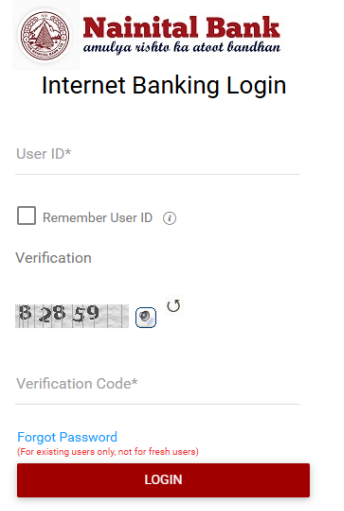
Customer can reset the login and transaction password through the forgot password link present on the login screen by answering the security question correctly. Forgot password link as in the screenshot below.
8. What is the password complexity for the Transaction and Login password?
Both the transaction and sign on password complexity are as follows: -
a. Password should contain Minimum of 8 characters and maximum of 28 characters.
b. Password should contain at least one upper case letter (A to Z), one lower case letter (a to z), one number (0 to 9)
and one special character (\, @, #, %, &, $, ^)
c. Password should not contain all or part of User ID
d. Password should not contain any space
e. New password should be different from previous Five Passwords
f. Sign on Password should be different from Transaction Password
9. What are the fund transfer limits for bank Retail and Corporate users through Net Banking?
Daily transaction limits are as follows: -
For Corporate User: - Total per day limit - Rs1 crore Limit for fund transfer NEFT/RTGS- Rs 80 Lakh Limit for fund transfer within Bank-Rs 20 Lakh
For Retail User: - Total per day limit - Rs 15 Lakh Limit for fund transfer NEFT/RTGS- Rs 10 Lakh Limit for fund transfer within Bank- Rs 05 Lakh
10. How to set up the security question through net banking?
Customers have to setup the Security question and answer during the first login to the Net Banking application.
11. How to change the security questions and answers through net banking?
Customers can login to the Net banking application and move to the Security Questions section (using the below path)
My Profile à Security Settingsà
Customers can add/change the security questions and answers.
12. How to change the Login and Transaction password through net banking?
Customers can login to the Net banking application and move to the Change Password section (using the below path)
My Profile à Security Settings à Change Passwords
My Profile à Security Settingsà
Customers can change the login and transaction password at the Change Passwords screen.
13. How to change the transaction limit through net banking?
Transactions limits can be changed using the below path through net banking.
Main Menuà General ServicesàGeneral ServicesàPersonalize Limità Set Personalize Limit
14. How many transactions can be done through Net Banking?
For Corporate User: -
NEFT/RTGS: - 100 Transaction Daily Within Bank: - 20 Transaction Daily
For Retail User: -
NEFT/RTGS: - 20 Transaction Daily Within Bank: - 10 Transaction Daily
15. What will be the basic system requirement to access the Net Banking Securely?
Operating System Certified Browsers
Microsoft Windows 7, 8, 8.1, 11 & above Google Chrome (66.x, 67.x, 68.x, & above), Microsoft Internet Explorer (11.x) & above, Mozilla Firefox (59.x, 60.x, 61.x, & above), Microsoft Edge (16.x) & above. Mac OS X 10.10 to 10.13.x Apple Safari ( 11.x)
Apple iOS 10.3, 11.x Apple Safari (11.x) & above
Google Android 4.4.x, 5.x, 6.x, 7.x, 8.x Google Chrome (66.x, 67.x, 68.x) and above
1. What are the charges for SMS alert facility?
SMS charges are based on actual usage basis.
2. What is the maximum amount of SMS charge?
Maximum amount is 15 RS + GST per quarter for SMS charges.
3. How to enable/disable SMS services?
SMS alerts can be enabled/disabled by visiting your branch.
4. If I am unable to receive alerts, what should I check?
Check "Spam and Blocked Folder" under the messaging app, mark messages with TNBLTD or NTLBNK header as "Not Spam".
Check your network coverage.
Reinsert sim.
Check message filtering Apps like Truecaller.
5. What are the transactions and activities for which SMS alerts are sent?
Alerts are sent for these activities:
I. Transaction Alerts
a. Debit and credit alerts
b. ATM withdrawals alerts
c. POS transaction alerts
d. UPI and E-Com transaction alerts
e. Internet banking transaction alerts
f. Mobile banking transactions alerts
II. Loan & EMI Reminders
a. Upcoming due dates
b. Overdue payment reminders
III. Cheque Status Updates
a. Cheque stopped
b. Cancel stop cheque request
c. Cheque returned
d. Cheque presentment in clearing
e. Positive pay
IV. Card Activity
a. Card activated, or blocked, Pin Change.
b. Enable/Disable for transactions.
Automated Teller Machine is a computerized machine that provides the facility of Cash withdrawal along with Non-financial transaction such as Balance Inquiry, Mini Statement, Debit Card PIN Change.
The ATM cards/debit cards can be used at ATMs for various transactions.
In addition to cash dispensing, ATM may have many services / facilities such as:
Bank does not own any ATM machines however the Bank is providing 5 free transactions per month inclusive of Financial and Non-Financial transactions. Beyond five transactions the Charges will be levied as per the Bank’s service charges Booklet.
The customer may lodge a complaint with the Bank and also this process is applicable even if the transaction was carried out at other Bank’s ATM’s.
For all such complaints customer may lodge a complaint to local Banking Ombudsman if the bank does not respond.
Cardholder can withdraw up to a maximum of Rs.20,000/- in a day and up to maximum of Rs.10,000/- can be withdrawn in a single transaction within the overall limit of the card.
Customers should observe following Do’s and Don’ts to keep their transaction safe and secure at ATM:
Please note that our Bank officials will never ask for card details or PIN over telephone / email. So, do not respond to any calls/phishing mails from people indicating that they represent our Bank.
Customer should conduct ATM transactions in complete
Only one card holder should enter and access ATM
He/she should never lend his/her card
Do not write PIN on the back of the Card or on the case.
Never share PIN/OTP with anyone
Never seek help from anybody by handing over the card and revealing the ATM
Never let anyone see the ATM PIN while it is being entered at the ATM
Never use a ATM PIN that could be easily e.g. his/her birthday, birthday of spouse or telephone number.
If observed any unauthorized card transaction immediately report to the Bank.
Beware of any extra devices attached to the ATM. These may be put to capture customer’s data fraudulently. If any such device is found, inform the Caretaker / Bank
Keep an eye on suspicious movements of people around Customer should beware of strangers trying to engaging him/her in conversation or offering assistance / help in operating the ATM
Customer may regenerate the card PIN with the help of Card Safe application (Sarvatra) or may submit the PIN regeneration request to the branch.
immediately call at Bank’s Toll Free number 1800 180 4031 or land Line Number 05946-250152 to get the card blocked or customer may set the card limit to ‘zero’ temporarily with the help of CardSafe application to avoid any Financial loss.
It is a three (-3-) digit number printed on the back of the card.
Please get in touch with your bank for registering your new mobile number. Do not forget to update the same every time whenever you change the number.
Customer will get it on his/her mobile number that is registered with the bank.
No, the OTP is valid for single transaction only.

